Installation at your SSH server
Installation auf dem SSH-Server
Now open a SSH connection to your SSH server, you can use the free PuTTY utility (You only need the program "putty.exe"). Please verify to start the installation from the above created user account!
Sie sollten nun eine Verbindung mit dem SSH-Server aufbauen, dazu können Sie das kostenfreie Utility PuTTY verwenden (Sie benötigen nur die Datei "putty.exe"). Achten Sie bitte darauf, dass die Installation unter dem zuvor angelegten Benutzeraccount ausgeführt wird!
To change into the account "netaccess":
Hiermit wird in den Benutzeraccount gewechselt:
user@host ~ $ sudo -u netaccess $SHELL
oder
or
root@host ~ # su -u netaccess -s $SHELL
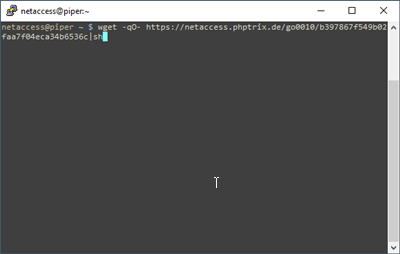
Paste the WGET-command from the management console installer (when using PuTTY it's just a right-click) and press Enter:
Fügen Sie den WGET-Befehl aus dem Installationsprogramm hier ein (bei PuTTY genügt dafür ein Klick mit der re. Maustaste) und drücken Sie Enter:
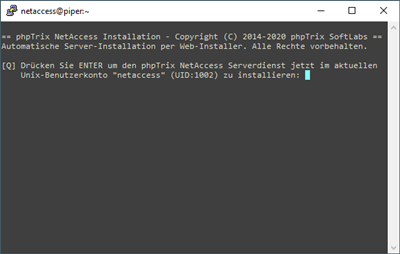
Press Enter again to start the installation and activation:
Drücken Sie hier erneut Enter um die Installation zu starten:
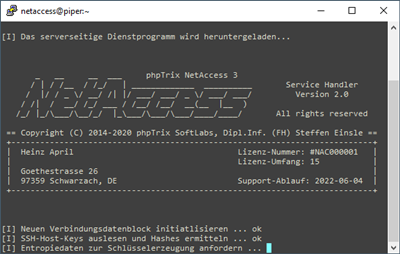
The activation process is fully automated and takes about 30 seconds, it downloads the program files "nacmgr" and "puttygen" and creates the folder "~/.netaccess". It creates a new ED25519-SSH-Key and stores the key in the configuration file "~/.netaccess/master.conf". It creates a cronjob (=scheduled Task), to update/create the file "~/.ssh/authorized_keys" every minute.
Die Einrichtung auf dem Server erfolgt automatisch und dauert ca. 30 Sekunden, dabei werden die Programmdateien "nacmgr" und "puttygen" heruntergeladen und das Verzeichnis "~/.netaccess" erstellt. Danach wird ein neuer ED25519-SSH-Key erstellt und in der Datei "~/.netaccess/master.conf" eingetragen. Ausserdem wird ein Cronjob (=geplanter Task) angelegt, der jede Minute die Datei "~/.ssh/authorized_keys" aktualisiert/neu erstellt.
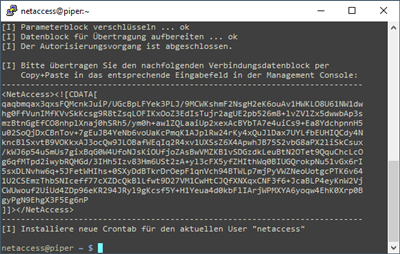
After activation a connection data block is printed - please copy (with PuTTY just mark the lines) and paste this block into the management console installer on your Windows PC.
Nach dem Abschluss der Einrichtung wird der verschlüsselte Verbindungsdatenblock ausgegeben - diesen können Sie einfach per Copy (bei PuTTY genügt es, den Bereich mit der Maus zu markieren) und Paste (Strg-V bzw. re. Maustaste und "einfügen") in das Installationsprogramm übertragen.